
Guides
16 Best Jekyll Plugins in 2027: SEO, Performance & Development
The best Jekyll plugins for 2027: SEO, sitemap, feeds, images, pagination and dev tools, with which ones GitHub Pages runs and which are worth skipping.
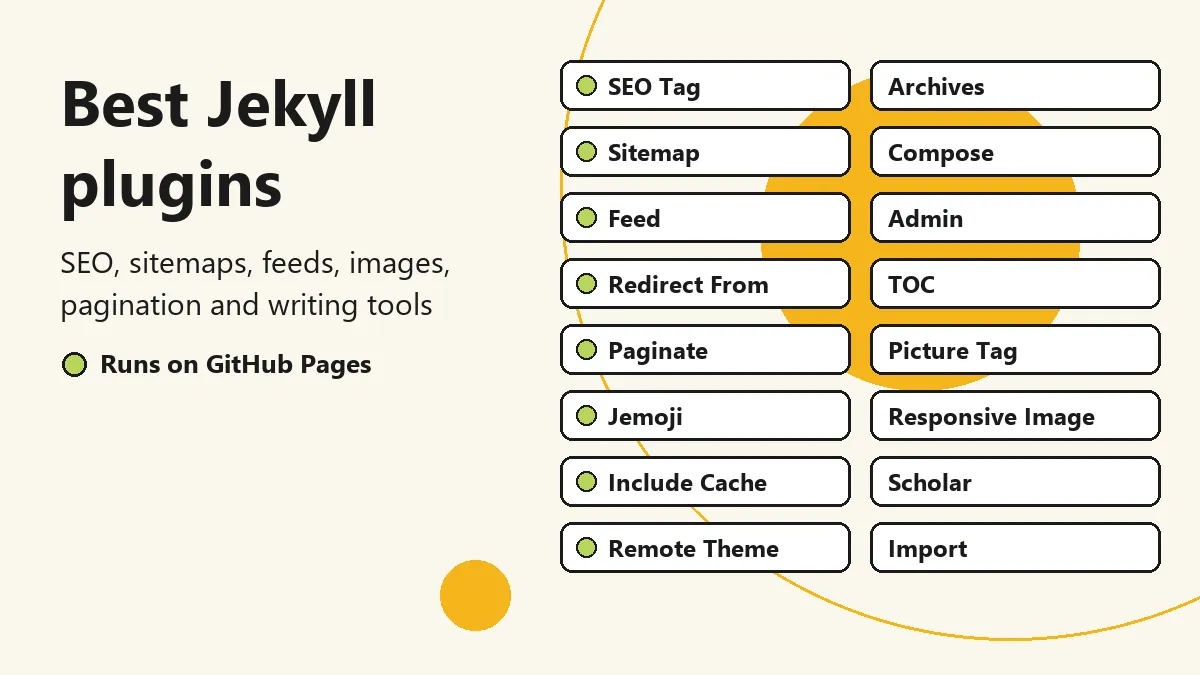
The best Jekyll plugins are the ones that solve a problem you actually have: metadata for search engines, a sitemap, a feed, redirects, pagination, or a faster way to write. Jekyll turns Markdown, templates and data into a static site with no database, and plugins add the rest. This guide covers 16 Jekyll plugins for 2027, what each one does, how to install it, and whether GitHub Pages will run it.
Versions and dates below were checked against RubyGems, GitHub and GitHub’s own Pages version list on 20 November 2026.
Quick answer: which Jekyll plugins do you need?
- Start with three: Jekyll SEO Tag, Jekyll Sitemap and Jekyll Feed. All three run on GitHub Pages with nothing extra.
- Moving URLs or migrating a site: add Redirect From, and Import if you are coming from another platform.
- Blog that keeps growing: add Paginate (posts only) or Paginate V2, and Archives for category pages.
- Image-heavy site: Picture Tag or Responsive Image.
- Long guides or docs: a table of contents, with or without a plugin.
- Hosting on GitHub Pages’ built-in build: stay with the plugins on its list, or build with GitHub Actions to use the rest.
What are Jekyll plugins?
Jekyll plugins are Ruby gems that extend the static site generator. Jekyll already gives you layouts, includes, collections, Liquid templates, Markdown and front matter. Plugins fill the gaps:
- An SEO plugin generates metadata for search engines and social networks.
- A sitemap plugin creates an XML sitemap.
- A feed plugin generates an Atom feed for readers.
- An image plugin creates responsive image sizes.
- A pagination plugin splits long lists of posts into pages.
- A content plugin helps you write, migrate or organize posts.
Every plugin is also a dependency to maintain, and some slow your builds. Install the ones you need and skip the rest.
Jekyll plugins at a glance
Here is the whole list in one table. “GitHub Pages” means the plugin runs on the standard built-in build. Status is the latest version and the year of its release.
| Plugin | What it does | GitHub Pages | Status |
|---|---|---|---|
| SEO Tag | Meta tags, Open Graph, JSON-LD | Yes | 2.9.1, Sep 2026 |
| Sitemap | /sitemap.xml |
Yes | 1.4.0, 2019 |
| Feed | Atom feed | Yes | 0.18.0, Sep 2026 |
| Redirect From | Redirects from old URLs | Yes | 0.17.0, Sep 2026 |
| Admin | Browser editor, local only | No | 0.12.0, Feb 2025 |
| Compose | Post and draft commands | No | 0.12.0, 2019 |
| Archives | Category, tag, date pages | No | 2.3.0, Dec 2024 |
| Include Cache | Faster builds | Yes | 0.3.2, Nov 2026 |
| Responsive Image | Resized images | No | 1.6.0, 2021 |
| Picture Tag | <picture> markup |
No | 2.1.3, Jun 2025 |
| Paginate | Post pagination | Yes | 1.1.0, 2014 |
| Scholar | Citations, bibliographies | No | 7.3.0, Jan 2026 |
| Jemoji | Emoji shortcodes | Yes | 0.13.0, 2022 |
| TOC | Table of contents | No | 0.19.0, 2024 |
| Remote Theme | Use a GitHub-hosted theme | Yes | 0.6.3, Nov 2026 |
| Import | Migrate from other platforms | No | 0.25.0, Jan 2025 |
Best Jekyll plugins for 2027
We ordered these by practical use, not popularity. The first four run on GitHub Pages and cover most sites.
1. Jekyll SEO Tag: best plugin for SEO
Gem: jekyll-seo-tag
Category: Search engine optimization
GitHub Pages: Yes
Status: 2.9.1 (September 2026). GitHub Pages runs 2.8.0.
If one Jekyll SEO plugin belongs on most sites, it’s Jekyll SEO Tag. It outputs the page title, meta description, canonical URL, Open Graph tags, Twitter card tags and JSON-LD structured data, plus previous and next links on paginated pages. If you build your own theme, you add it to the layout once and every page and post fills in its details from front matter.
Add it to your Gemfile:
gem "jekyll-seo-tag"Enable it in _config.yml:
plugins:
  - jekyll-seo-tag
Put the tag inside the <head> of your main layout:
{% seo %}Why we recommend it: it removes repetitive work and keeps metadata consistent. It doesn’t improve rankings by itself. You still need useful content, internal links and technically sound pages.
2. Jekyll Sitemap: automatic XML sitemaps
Gem: jekyll-sitemap
Category: SEO and indexing
GitHub Pages: Yes
Status: 1.4.0 (2019). Stable, with no new releases needed.
A Jekyll sitemap helps search engines discover your URLs. Jekyll Sitemap builds one at /sitemap.xml on every build, so you never edit it by hand.
gem "jekyll-sitemap"plugins:
- jekyll-sitemapSet your site URL correctly, or the sitemap will list the wrong addresses:
url: "https://example.com"
baseurl: ""
After a build, open https://example.com/sitemap.xml and submit it in Google Search Console.
Why we recommend it: it solves a real technical SEO task with no upkeep. A sitemap helps discovery. It doesn’t guarantee indexing.
3. Jekyll Feed: RSS and Atom feeds
Gem: jekyll-feed
Category: Blogging and content distribution
GitHub Pages: Yes
Status: 0.18.0 (September 2026). GitHub Pages runs 0.17.0.
Jekyll Feed generates an Atom feed of your posts at /feed.xml. The path is configurable. Readers can follow you in a feed reader, and aggregators and automation tools can pick up new posts.
gem "jekyll-feed"plugins:
- jekyll-feedIt uses your site title, description, URL and author settings.
Why we recommend it: if you publish regularly, it’s an easy way to make your content easier to follow.
4. Jekyll Redirect From: redirects without hand-made files
Gem: jekyll-redirect-from
Category: SEO and URL management
GitHub Pages: Yes
Status: 0.17.0 (September 2026)
Moving a page breaks old links unless you redirect them. Say you move /blog/best-jekyll-themes/ to /jekyll-themes/best-jekyll-themes/. The old address may have backlinks, bookmarks and search visibility, and visitors who use it would get a 404. Jekyll Redirect From generates redirect pages for the old URLs.
gem "jekyll-redirect-from"plugins:
- jekyll-redirect-fromList the old URLs in the page’s front matter:
---
title: Best Jekyll Themes
permalink: /jekyll-themes/best-jekyll-themes/
redirect_from:
  - /blog/best-jekyll-themes/
---
Why we recommend it: it’s the safe way to handle a redesign, a permalink change, a migration or a reorganized blog. Note that these are HTML redirects. On a host where you control the server, such as Cloudflare Pages, you can also use real server-side redirects.
5. Jekyll Admin: a browser interface for your content
Gem: jekyll-admin
Category: Content management
GitHub Pages: No
Status: 0.12.0 (February 2025). A local development tool.
With Jekyll you normally edit Markdown files and front matter by hand. Developers like that, but not everyone does. Jekyll Admin adds a CMS-style interface for posts, pages, collections, drafts, data files, static files and site configuration.
Add it to the plugins group in your Gemfile:
gem "jekyll-admin", group: :jekyll_pluginsRun bundle install, start your local server and open http://localhost:4000/admin.
Why we recommend it: it suits people who would rather not edit files by hand. Treat it as a local tool. Don’t expose an admin interface on a public server without understanding the security implications.
6. Jekyll Compose: a faster writing workflow
Gem: jekyll-compose
Category: Blogging and productivity
GitHub Pages: No, and it doesn’t need to be. It’s a local command-line helper.
Status: 0.12.0 (2019). Old, but it still works.
Creating files, adding front matter and moving drafts around gets tedious. Jekyll Compose adds commands to the Jekyll command line: post, draft, page, publish, unpublish, rename and compose.
gem "jekyll-compose", group: [:jekyll_plugins]Create a post:
bundle exec jekyll post "My New Article"Create a draft:
bundle exec jekyll draft "My New Article"Publish a draft:
bundle exec jekyll publish _drafts/my-new-article.mdWhy we recommend it: it removes several repetitive steps if you publish often or run more than one Jekyll site.
7. Jekyll Archives: category, tag and date pages
Gem: jekyll-archives
Category: Content organization
GitHub Pages: No
Status: 2.3.0 (December 2024)
A blog with 20 posts is easy to browse. One with hundreds needs structure. Jekyll Archives generates archive pages for categories, tags and dates, such as /categories/jekyll/ or /tags/seo/.
gem "jekyll-archives"plugins:
- jekyll-archivesA basic setup:
jekyll-archives:
  enabled:
    - categories
    - tags
  layouts:
    category: archive
    tag: archive
  permalinks:
    category: /categories/:name/
    tag: /tags/:name/
You also need to create the archive layout.
Why we recommend it: archive pages help visitors find related posts. Don’t generate hundreds of thin archive pages just for SEO. Each one should be useful on its own.
8. Jekyll Include Cache: faster builds
Gem: jekyll-include-cache
Category: Performance
GitHub Pages: Yes
Status: 0.3.2 (November 2026). GitHub Pages runs 0.2.1.
Large sites can spend a lot of build time rendering the same include over and over. Jekyll Include Cache adds an include_cached tag that caches an include’s output, so unchanged includes such as a header, footer or sidebar don’t render again for every page.
gem "jekyll-include-cache"plugins:
- jekyll-include-cacheThen swap include for include_cached where the output doesn’t change per page:
{% include_cached footer.html %}Why we recommend it: it’s a low-risk way to cut build time on bigger sites. Don’t cache includes whose output depends on the current page.
9. Jekyll Responsive Image: resized images for every screen
Gem: jekyll-responsive-image (with a hyphen)
Category: Image optimization
GitHub Pages: No
Status: 1.6.0 (2021). Low activity.
Serving one large image to every visitor wastes data on phones. Jekyll Responsive Image generates several sizes of each image and outputs srcset or picture markup, so the browser picks a suitable one. It needs ImageMagick through the rmagick gem, and you configure source folders and output sizes yourself.
gem "jekyll-responsive-image"plugins:
- jekyll-responsive-imageThe name is easy to get wrong. The underscore version, jekyll-responsive_image, is an old 2016 gem. Use the hyphen version.
Why we recommend it with caution: it works, but activity is low. For a new project, compare it with Picture Tag below, or let your theme or host handle resizing. Resizing is one part of image work. Compression, modern formats such as WebP and AVIF, correct dimensions and lazy loading matter as well.
10. Jekyll Picture Tag: modern responsive images
Gem: jekyll_picture_tag (with underscores)
Category: Responsive images
GitHub Pages: No
Status: 2.1.3 (June 2025). Actively maintained. Needs Jekyll 4 and libvips.
Jekyll Picture Tag generates <picture> elements with multiple sizes and formats, so a browser can choose by screen size and format support. It uses libvips, which is fast, and it’s the more current of the two image plugins here.
gem "jekyll_picture_tag"plugins:
- jekyll_picture_tagWhy we recommend it: it suits photography sites, portfolios and visually rich themes on a custom build. If your images are few and already optimized, hand-written <picture> or srcset markup in your theme may be all you need.
11. Jekyll Paginate: pagination for your blog
Gem: jekyll-paginate
Category: Content navigation
GitHub Pages: Yes
Status: 1.1.0 (2014). Described as no longer under active development.
Jekyll pagination splits your posts into pages: the latest 10 on page 1, the next 10 on page 2, and so on. Jekyll Paginate does this for the main post list.
gem "jekyll-paginate"plugins:
- jekyll-paginatepaginate: 10
paginate_path: "/blog/page:num/"Your blog index layout then uses the paginator variables.
Limits: it paginates posts only. For collections, categories or tags, use Jekyll Paginate V2 (3.0.0, 2020), a separate gem that doesn’t run on GitHub Pages’ built-in build. Don’t confuse the two.
Why we recommend it: it’s still the simplest option on GitHub Pages, and it’s stable. Just know it’s frozen.
12. Jekyll Scholar: bibliographies and citations
Gem: jekyll-scholar
Category: Academic publishing
GitHub Pages: No
Status: 7.3.0 (January 2026). Needs Jekyll 4.
Researchers and students often need citations, bibliographies and publication lists. Jekyll Scholar reads BibTeX files and formats references on your pages.
Why we recommend it: if you’re building an academic site, it saves a lot of time. It’s specialized, so most blogs won’t need it.
13. Jemoji: GitHub-style emoji
Gem: jemoji
Category: Content formatting
GitHub Pages: Yes
Status: 0.13.0 (2022)
Jemoji turns shortcodes such as :smile:, :rocket: and :heart: into emoji.
Why we recommend it: it isn’t essential, but it’s handy for personal blogs, developer sites and community projects, and it runs on GitHub Pages.
14. Jekyll TOC: a table of contents for long posts
Gem: jekyll-toc
Category: Content navigation
GitHub Pages: No
Status: 0.19.0 (2024). Actively maintained.
Long guides are hard to scan. Jekyll TOC builds a table of contents from your headings. Add toc: true to a page’s front matter, then use the toc filter or the {% toc %} tag in your layout.
gem "jekyll-toc"plugins:
- jekyll-tocThere’s another project with a similar name. allejo/jekyll-toc isn’t a gem. It’s a Liquid include you copy into your site, which means it works on GitHub Pages with no plugin at all.
Why we recommend it: tutorials, documentation and detailed guides read better when people can jump to the section they need.
15. Jekyll Remote Theme: use any GitHub-hosted theme
Gem: jekyll-remote-theme
Category: Themes
GitHub Pages: Yes
Status: 0.6.3 (November 2026). GitHub Pages runs 0.4.3.
GitHub Pages can only load a short list of built-in themes. Jekyll Remote Theme lets you use any theme hosted on GitHub, without installing it as a gem.
gem "jekyll-remote-theme"plugins:
- jekyll-remote-theme
remote_theme: owner/theme-repoWhy we recommend it: it’s the easiest way to try a theme from a repository on GitHub Pages. For a site you’ll keep for years, copying the theme files into your own repository gives you more control. If you’re still choosing, see our roundup of the best Jekyll themes.
16. Jekyll Import: migrate from other platforms
Gem: jekyll-import
Category: Content migration
GitHub Pages: No
Status: 0.25.0 (January 2025)
Moving hundreds of posts by hand isn’t realistic. Jekyll Import has importers for WordPress, Blogger, Drupal, Joomla, Tumblr and more, and converts the content into Jekyll files. Run it once on your computer, then you don’t need it in the site’s Gemfile.
Why we recommend it: it’s worth trying before a manual migration. Importing is only one step. You also need to check URLs, images, metadata, internal links and redirects. Our guide to moving from WordPress to Jekyll walks through that process.
Jekyll plugins to skip (or replace) in 2027
Many plugin lists still recommend dead or outdated gems. Here is what to avoid and what to use instead.
| Skip | Why | Use instead |
|---|---|---|
jekyll-assets |
2018; needs Jekyll below 4 | Your host or a build step |
jekyll-mermaid |
2014; inactive since 2019 | A Mermaid script |
jekyll-responsive_image |
Old 2016 gem | The hyphen name |
jekyll-picture-tag |
Wrong name | jekyll_picture_tag |
Mermaid doesn’t need a Jekyll plugin. Add the Mermaid library to your layout, write your diagrams in <pre class="mermaid"> blocks, and the browser renders them. That works on any host, including GitHub Pages.
Before you add any gem, check three things: the date of its last release, whether its repository still has recent commits, and which Jekyll version it requires. That takes two minutes and saves hours of debugging.
Which Jekyll plugins should you install?
You don’t need all 16. The right set depends on what you’re building:
| Website type | Recommended plugins |
|---|---|
| Personal blog | SEO Tag, Sitemap, Feed, Compose |
| Business website | SEO Tag, Sitemap, Redirect From |
| Developer blog | SEO Tag, Feed, Jemoji, TOC |
| Documentation | SEO Tag, Sitemap, TOC, Include Cache |
| Photography portfolio | SEO Tag, Sitemap, Picture Tag |
| Academic site | Scholar, SEO Tag, Sitemap |
| Large content site | SEO Tag, Sitemap, Archives, Paginate V2 |
| Migration | Redirect From, Import |
For most Jekyll sites, the SEO, sitemap and feed plugins are enough. Add the others when you need them.
How to install Jekyll plugins
Most plugins are Ruby gems, so you manage them through your Gemfile and _config.yml.
Step 1: Add the gems to your Gemfile
group :jekyll_plugins do
  gem "jekyll-seo-tag"
  gem "jekyll-sitemap"
  gem "jekyll-feed"
  gem "jekyll-redirect-from"
  gem "jekyll-compose"
end
Only list the ones your site uses.
Step 2: Install the dependencies
bundle installStep 3: Enable the plugins
In _config.yml:
plugins:
  - jekyll-seo-tag
  - jekyll-sitemap
  - jekyll-feed
  - jekyll-redirect-from
Plugins that add commands only, such as Compose and Admin, load from the :jekyll_plugins group and don’t need a plugins: entry. The names in _config.yml must match the gem names.
Step 4: Build your site
bundle exec jekyll buildOr start the development server:
bundle exec jekyll serveIf the build fails, check the plugin’s documentation, your Ruby version, the Jekyll version it needs, and any missing dependencies.
GitHub Pages plugins: what runs and what doesn’t
This is the most important thing to understand before you install anything. GitHub Pages’ built-in build is restricted for security reasons. It runs a fixed list of plugins, not arbitrary Ruby code, and it’s pinned to older versions. As of November 2026 it builds with Jekyll 3.10.0 (the github-pages gem, version 232), while the latest Jekyll is 4.4.1. We explain why in Is Jekyll dead?.
The plugins on GitHub Pages’ list include:
- Jekyll SEO Tag
- Jekyll Sitemap
- Jekyll Feed
- Jekyll Redirect From
- Jekyll Paginate
- Jemoji
- Jekyll Gist
- Jekyll GitHub Metadata
- Jekyll Include Cache
- Jekyll Relative Links
- Jekyll Remote Theme
- Jekyll Optional Front Matter
Jekyll Relative Links is worth knowing about. It makes links between your .md files keep working, which is handy for documentation and README-style sites.
Versions on the list lag behind the gems. For example, Pages runs jekyll-seo-tag 2.8.0 while the latest is 2.9.1, and jekyll-feed 0.17.0 while the latest is 0.18.0. For these plugins the difference rarely matters, but you can’t pick a newer version on the built-in build.
These are not on the list: Jekyll Admin, Compose, Archives, Paginate V2, Responsive Image, Picture Tag, Scholar, TOC and Import.
What if you want plugins GitHub Pages doesn’t run?
You don’t have to leave GitHub. Build the site yourself with a GitHub Actions workflow, which runs your own Ruby setup with any plugins and Jekyll version, then publish the generated files to GitHub Pages. You can also build locally, or use a host where you control the build, such as Cloudflare Pages.
Official references:
How we choose plugins in our own themes
We build Jekyll themes, so we run into this trade-off all the time.
- Alcor, our free theme, uses only plugins GitHub Pages already runs: SEO Tag and Sitemap. Izar adds Feed. Both build on GitHub Pages with nothing extra.
- Snowlake runs on Jekyll 4.4 with Jekyll Archives and Paginate V2, so it ships a GitHub Actions workflow to build on GitHub Pages.
- Sandbox runs on Jekyll 4.4 with Paginate V2 and jekyll-toc.
The lesson is simple. If you want zero setup on GitHub Pages, stay inside its plugin list. If you want archives, advanced pagination or newer Jekyll features, plan for a custom build from the start.
Do Jekyll plugins affect performance?
They can, but not in the way people assume. Jekyll generates static HTML, so visitors get finished files and your Ruby plugins don’t run on each request. Plugins affect other things:
- Build time: plugins that process images, generate many pages or handle big collections slow builds.
- Output size: plugins that create unnecessary pages, metadata or assets make the site bigger.
- Dependencies: every gem is one more thing to update and one more thing that can break.
- Front-end speed: image plugins can help, but poorly configured processing or extra JavaScript can hurt.
Judge the final site, not the plugin count. A well-configured site with a few good plugins can be very fast.
Choosing a theme and plugins together
Your theme matters as much as your plugins. Many Jekyll themes already include SEO Tag, Feed and Sitemap support, so check what yours supports before you add anything. When you compare themes, look at:
- Responsive design: it should work on phones, tablets and desktops.
- SEO-friendly structure: proper headings, metadata support, semantic HTML and clean URLs.
- Performance: no unnecessary scripts or oversized assets.
- Customization: can you change layouts, colors and typography?
- Documentation: good docs make setup much easier.
- Plugin compatibility: does it work with your Jekyll version and host?
Browse our Jekyll themes or read the best Jekyll themes roundup. Check the plugin requirements of any theme before you buy or install it.
Frequently asked questions about Jekyll plugins
Which Jekyll plugins does GitHub Pages support?
The built-in GitHub Pages build runs a fixed list, including jekyll-seo-tag, jekyll-sitemap, jekyll-feed, jekyll-redirect-from, jekyll-paginate, jemoji, jekyll-gist, jekyll-github-metadata, jekyll-include-cache, jekyll-relative-links, jekyll-remote-theme and jekyll-optional-front-matter. The current list is at pages.github.com/versions. Anything else needs a GitHub Actions build or another host.
Do Jekyll plugins work with Jekyll 4?
Many do, but check each gem. GitHub Pages’ built-in build runs Jekyll 3.10.0, while Jekyll 4.4.1 is the latest release. Jekyll Scholar and Jekyll Picture Tag need Jekyll 4, while Jekyll Assets requires a version below 4.0. The gem’s page on RubyGems and its README state the Jekyll version it supports.
What are the best Jekyll plugins for beginners?
Jekyll SEO Tag, Jekyll Sitemap and Jekyll Feed. They need very little configuration and run on GitHub Pages. Add others as your site grows.
Are Jekyll plugins free?
Most popular Jekyll plugins are open-source Ruby gems and free to use. Check the license and dependencies of each one before using it in a commercial project.
Can I use Jekyll plugins with GitHub Pages?
Yes, but only the ones on its list run on the built-in build. For anything else, build the site with GitHub Actions and publish the generated files, or use another host.
Do Jekyll plugins improve SEO?
Some help with technical SEO. Jekyll SEO Tag generates metadata, and Jekyll Sitemap generates an XML sitemap. They don’t guarantee rankings. Content quality, site structure, speed, crawlability and backlinks still decide the result.
How many plugins should I install in Jekyll?
There is no ideal number. Install only what solves a specific problem. A shorter dependency list is easier to maintain and debug.
Where can I find more Jekyll plugins?
The Planet Jekyll plugin directory still exists, but its source hasn’t been updated since 2018, so check every entry’s release date. The Awesome Jekyll Plugins repository is active, with updates as recent as October 2026. Both are useful starting points, as long as you check each gem’s last release before relying on it.
Final thoughts
The best Jekyll plugins aren’t the longest list. A handful of well-chosen ones can improve how you manage content, handle SEO and keep your workflow smooth.
If you’re starting out, install Jekyll SEO Tag, Jekyll Sitemap and Jekyll Feed. Add Redirect From when you move URLs, Compose when you publish often, and the specialized plugins only when a real need appears. Before you add any gem, check its last release, its Jekyll version requirements and whether your host will run it.
A great Jekyll site also depends on its theme, content structure and speed. Pick plugins that solve real problems, keep the dependency list short, and you’ll have a site that’s easy to maintain as it grows.